
Introducing AI Prompt Enhancement on Arcframe: Better Generations, Fewer Retries
Arcframe's new Enhance Prompt feature rewrites your brief with AI before it reaches the model — so you spend fewer credits chasing the right result.
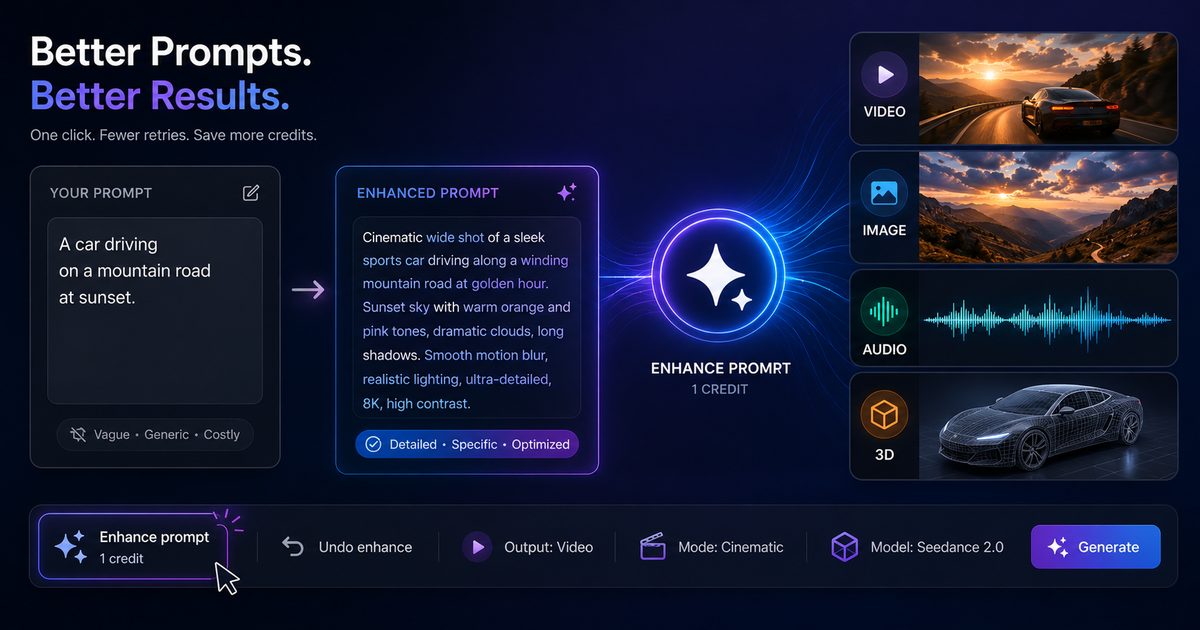
Why Your Prompt Is the Most Expensive Part of AI Generation
Every generation on Arcframe burns credits. A vague prompt that produces an off-target result means you iterate — and each iteration costs more. The single highest-leverage thing you can do to save credits is write a better brief before you hit Generate.
That's exactly what the new Enhance Prompt feature does. One click, 1 credit, and your rough idea becomes a fully-formed, model-ready instruction that dramatically improves your first-try success rate.
What Enhance Prompt Does
When you click ✦ Enhance prompt in the dashboard toolbar, Arcframe sends your current text to an AI that rewrites it specifically for the output type and mode you have selected. It is not a generic rewrite — the AI understands the vocabulary that each Arcframe model responds best to:
- Video modes — adds camera directions, motion language, scene pacing, and lighting cues (cinematic, motion graphics, news-to-video, product ad, UGC).
- Image modes — adds composition framing, art style references, lighting quality, and rendering detail.
- Audio modes — adds BPM, instrumentation, mood, and tempo markers for music; tone, texture, and foley detail for SFX; speaking pace and emotion for speech.
- 3D modes — adds material descriptors, surface finish, polygon density cues, and environment context.
The enhanced text replaces your original in the prompt box. If you don't like the result, an ↩ Undo enhance link restores your original instantly — and disappears automatically the next time you type, so it never gets in the way.
How It Saves You Credits
Consider a typical iteration loop without prompt enhancement:
- Write a short prompt → generate (costs 10–20 credits for video)
- Result misses the mark → tweak prompt → generate again
- Repeat 2–3 times until satisfied
A 3-iteration video session costs 30–60 credits. Spending 1 credit to enhance the prompt before the first generation — and landing it in one or two tries instead — saves 20–40 credits net. The feature pays for itself on almost every generation.
The Credit Cost
Enhance Prompt costs 1 credit per use (approximately ₹3.00 at standard rates). There is no subscription-tier restriction — it is available on all plans. The 1 credit is deducted at the moment you click the button, whether or not you proceed to generate.
When to Use It
- You have a rough idea but are not sure how to phrase it for AI models.
- Your last generation came out generic and you need more specificity.
- You are switching output types (e.g. from Image to Video) and your prompt needs to be adapted to the new modality.
- You want a polished result on the first try to conserve credits.
When to Skip It
If you already have a highly specific, detailed prompt — one that describes exactly what you want — Enhance Prompt may add noise rather than value. The undo button is always there if the rewrite drifts from your intent.
How to Use It
- Open the Arcframe dashboard and select your output type (Video, Image, Audio, or 3D).
- Choose your mode and model.
- Type your rough brief in the prompt box.
- Click ✦ Enhance prompt in the bottom toolbar (far left, next to the sparkle icon).
- Review the rewritten prompt. Use ↩ Undo enhance to restore your original if needed.
- Click Generate.
That's it. One extra step, 1 credit, and a significantly higher chance of a great first result.