
How to Generate AI Video and Images From Claude or Cursor
MCP lets you generate video, image, audio and 3D output directly from an AI assistant's chat window: add the server once in your client's settings, restart, and generation tools appear in that chat's tool picker — no separate app or upload step.
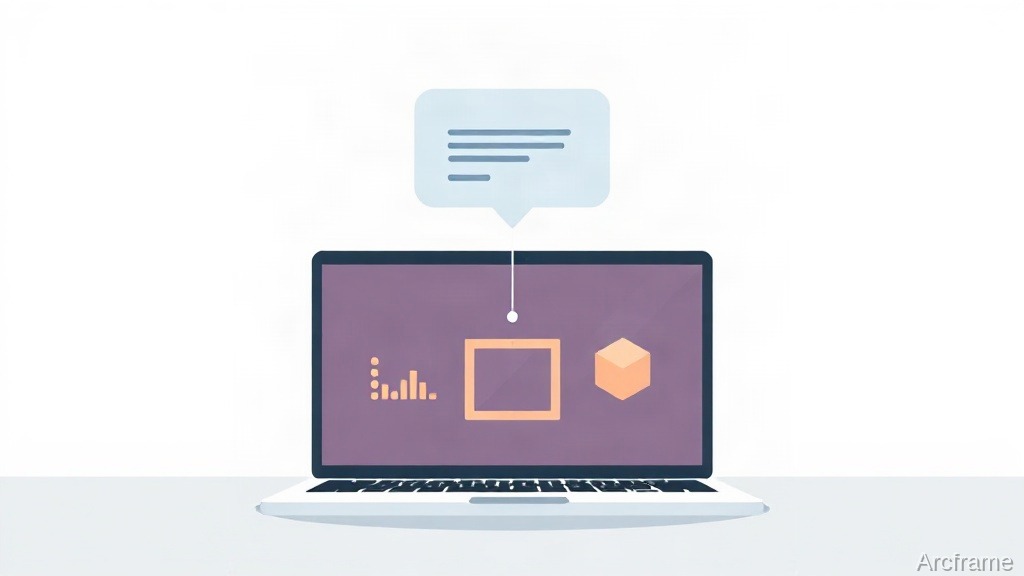
The short answer: an MCP-based generator connects to Claude Desktop or Cursor by adding the server's details once in that client's settings, restarting the app, and then calling it like any other tool from inside the chat. No browser tab, no upload step, no switching windows to check on a render — the assistant calls the generation tool, polls it, and drops the result back into the conversation.
The Model Context Protocol (MCP) is an open standard for connecting an AI assistant to external tools and data. A generation service that exposes an MCP server gives an assistant a defined set of callable actions — generate a video, generate an image, check a job's status — the same way a plugin gives a browser a new button. The assistant decides when to call them based on what you ask for in plain language.
What actually changes for you
Without MCP, using an AI image or video generator alongside an AI assistant means two open tabs: one for the conversation where you refine the idea, one for the generator where you paste the final prompt and wait. With MCP, that second tab disappears. You describe what you want in the same chat where you were already drafting the script or the product copy, the assistant issues the generation call, and it reports back when the file is ready.
Setting it up, client by client
The exact menu labels shift between app versions, so treat this as the general shape rather than a pixel-accurate walkthrough — check your client's own MCP documentation if a step doesn't match what you see.
| Client | Where the setting lives | What you add | After adding |
|---|---|---|---|
| Claude Desktop | Settings → Developer → Edit Config | The server's command or connection details, written into the client's MCP config file | Restart the app; the new tools appear in the chat's tool picker |
| Cursor | Settings → MCP | A new server entry with the same connection details | Enable the server; its tools become available inside Cursor's chat and agent modes |
| ChatGPT (connector-enabled plans) | Settings → Connectors | The server's endpoint, added as a connector | Authorize it; it's callable from chat once approved |
Once a server is added, you don't reference it by name in every message. You just ask for what you want — "generate a 16:9 image of X" or "turn this into a 20-second video" — and the assistant picks the right tool if one is connected.
What an MCP-connected generator can actually do
The specifics depend on which server you connect, but a generation-focused MCP server typically exposes:
- Text-to-image and image editing, with the assistant polling until the render finishes
- Text-to-video, so a script drafted earlier in the same chat becomes a clip without re-pasting it anywhere
- Text-to-speech, including narration in multiple languages when the underlying service supports it
- Image-to-3D conversion, for cases where the deliverable isn't a flat image at all
Arcframe's MCP server, for example, exposes all four of those — video, image, audio and 3D generation, across 30+ underlying models — as tools Claude, Cursor and ChatGPT can call on your Arcframe account, so generation happens in the assistant you're already using instead of a separate app. Indian-language narration (11 languages) and voice cloning are available the same way: as tool calls, not a separate upload workflow.
Where this breaks down
Two honest limitations worth knowing before you set this up. First, generation still takes real time — an image is fast, a video render is not instant — so the assistant is polling a job in the background, and a long chat session with several video calls queued will feel slower than a single quick image. Second, MCP tool calls run on the connected account's own plan and credits: connecting Claude to a generator doesn't create free capacity, it just changes where you spend the capacity you already have. If that account is on a free tier, the credit ceiling still applies exactly as it would in the generator's own web app.
Is this worth setting up over just using the web app directly?
If you generate once in a while, probably not — opening a tab costs nothing. The setup pays off when generation is one step inside a larger task you're already doing in an assistant: drafting a script and immediately turning it into narration, iterating on a product image while writing the listing copy around it, or building a slide deck and wanting a narrated video version without leaving the chat. In those cases, removing the copy-paste round trip is the entire value.
| Web app | MCP-connected assistant | |
|---|---|---|
| Where you work | Dedicated generator UI | Whatever chat you're already using |
| Prompt handling | You paste/retype it | Assistant reuses context from the conversation |
| Best for | One-off generations, fine visual control | Multi-step workflows spanning writing and generation |
| Setup cost | None | One-time config per client |
Full pricing and free-tier details for Arcframe, including the 20-credit no-card free tier, are at arcframe.ai/pricing.