
How to Get the Best Indian Language Audio from Arcframe: Translate Prompt Tips
A practical guide to using Arcframe's Translate Prompt feature effectively — including delivery cues, script structure tips, and how to maximise quality while minimising credit spend.
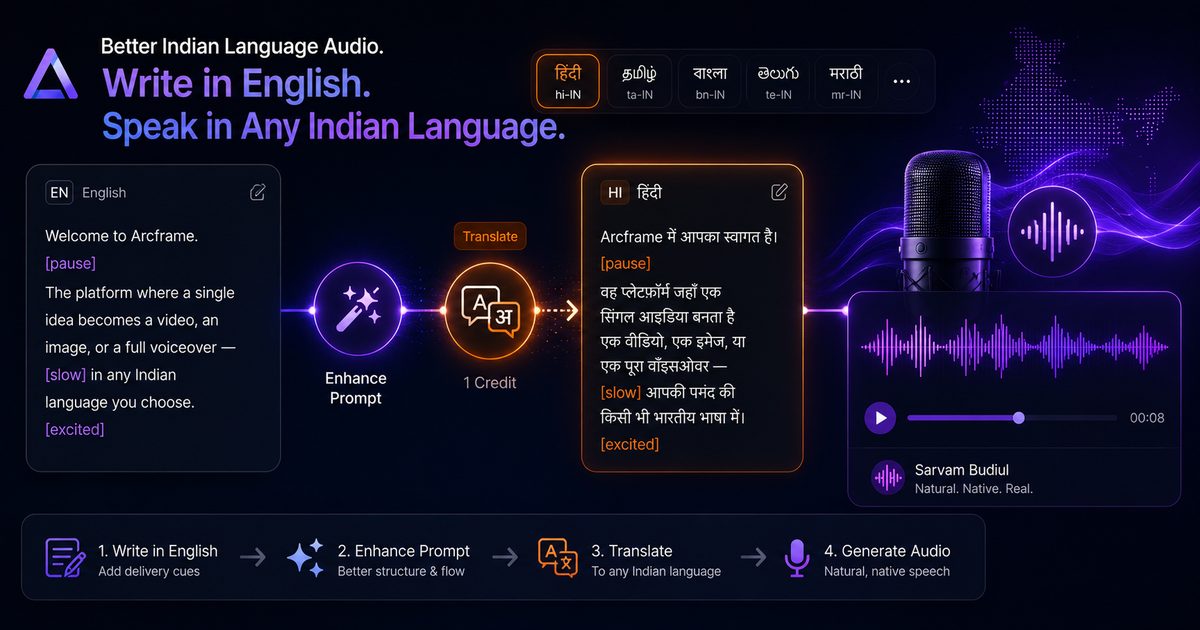
The Secret to Great AI Speech in Indian Languages
Generating natural-sounding Hindi, Tamil, or Bengali AI speech is not just about picking the right model. The single biggest quality lever is the language of the input text. A speech model trained on native-language data performs at its best when it receives native-language input — not a phonetic approximation or an English transliteration.
Arcframe's Translate Prompt feature automates this: you write in English, click Translate, and the AI converts your script to the target language before Sarvam Bulbul ever sees it. This guide shows you how to get the most out of that workflow.
Step 1: Structure Your English Script First
The translation AI carries over the structure and intent of your English script. A well-structured English input produces a well-structured translation. Before clicking Translate, make sure your script:
- Uses complete sentences (not bullet fragments).
- Has natural paragraph breaks at the points where you want the speaker to pause.
- Avoids idioms or slang that may not translate accurately (e.g. "drop the ball", "ballpark figure").
- Keeps brand names, product names, and proper nouns in their original form — the translation will preserve them as-is.
Step 2: Add Delivery Cues Before Translating
Translate Prompt preserves inline delivery cues through the translation. Add them to your English script before clicking Translate and they will survive into the target language:
[pause]— natural breath pause between sentences or ideas.[slow]— reduces speaking pace; useful for emphasis or explanatory passages.[excited]— energetic, upbeat delivery.[whispers]— intimate, hushed tone.[serious]— authoritative, measured delivery.
Example (English input with cues):
"Welcome to Arcframe. [pause] The platform where a single idea becomes a video, an image, or a full voiceover — [slow] in any Indian language you choose."
After translation to Hindi, the [pause] and [slow] markers remain in the translated text and Sarvam Bulbul honours them at generation time.
Step 3: Review the Translation Before Generating
The translation AI is highly accurate for all 10 supported Indian languages, but a 5-second review before generating is always worth it — especially for:
- Brand or product names — confirm they are not transliterated incorrectly.
- Numbers and currencies — ensure ₹, percentages, and dates read naturally in the target language.
- Technical terms — domain-specific vocabulary may need a manual adjustment if the translation opts for a literal rendering over the commonly used English loanword.
The prompt box is fully editable after translation. Make any small corrections directly in the box before clicking Generate.
Step 4: Generate With Sarvam Bulbul
Once you are happy with the translated script, click Generate. Sarvam Bulbul processes the native-language text and produces a WAV audio file, delivered as a playable link in your dashboard within a few seconds.
Combining Translate With Enhance Prompt
For the best possible speech output, combine both features:
- Write a rough English brief.
- Click ✦ Enhance prompt — the AI rewrites it as a natural, well-paced speech script with delivery cues added automatically (1 credit).
- Click Translate — the enhanced, cue-annotated script is translated into your target language (1 credit).
- Click Generate with Sarvam Bulbul (2 credits).
Total: 4 credits for a polished, natural, fully localised Indian language voiceover. Compare that to the cost of iterating on a poorly-worded English script that produces stiff-sounding speech.
Credit Summary
| Action | Credits |
|---|---|
| Translate Prompt (non-English language) | 1 credit |
| Translate Prompt (English / en-IN) | Free |
| Enhance Prompt | 1 credit |
| Sarvam Bulbul speech generation | 2 credits |
| Full workflow (enhance + translate + generate) | 4 credits |
Use Cases
- YouTube / Reels voiceovers — write once in English, translate and generate in 4 Indian languages for 4 regional channel uploads.
- Ad scripts — localise a 30-second product ad script for Hindi and Tamil markets without a copywriter.
- E-learning audio — convert English lesson scripts to native-language audio for regional learner audiences.
- IVR and customer service audio — generate professional-quality prompts in multiple Indian languages from a single English master.
Quick Reference Checklist
- Select Audio → Speech → Sarvam Bulbul.
- Choose target language from the language strip (not en-IN).
- Write English script with delivery cues if needed.
- Optionally click ✦ Enhance prompt first (1 credit).
- Click orange Translate (1 credit).
- Review translation, make minor edits if needed.
- Click Generate (2 credits).
Natural, accent-accurate Indian language speech in under a minute — that is what Translate Prompt makes possible on Arcframe.