
How to Clone Your Voice with AI and Generate Unlimited Voiceovers on Arcframe
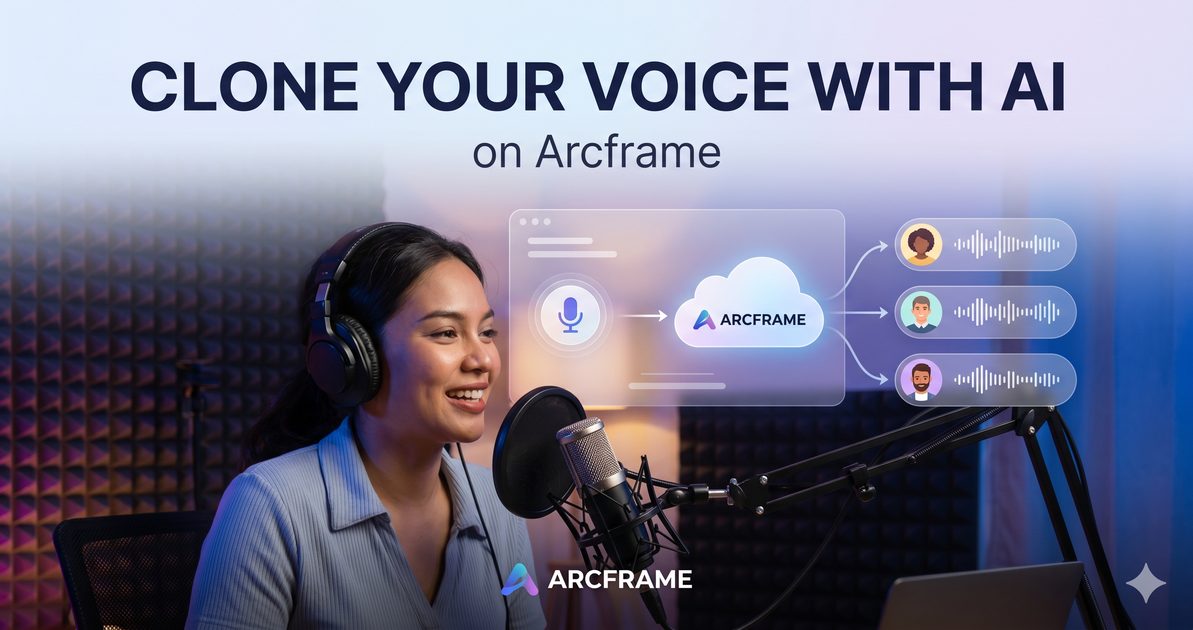
Arcframe's AI voice cloning lets you record or upload a 30-second voice sample and generate unlimited narration in your own voice — no studio, no microphone setup, no re-recording. Here's how it works.
Why Voice Cloning Changes the Game for Creators
Recording voiceovers is one of the most time-consuming parts of video production. A single script revision can mean re-recording, re-editing, and re-syncing audio — sometimes hours of work for a two-minute video. AI voice cloning solves this completely.
With Arcframe, you record your voice once. After that, you type any script and the platform generates a natural-sounding narration in your exact voice — in seconds. Update the script, regenerate the audio, done. No microphone, no studio, no re-recording.
What You Need to Get Started
- An Arcframe account (Pro plan or above — voice cloning requires Pro access)
- A 5 to 30-second voice sample — recorded directly in the browser or uploaded as an audio file
- A script or text you want narrated
That is it. You do not need any audio editing software, an external microphone, or a quiet recording environment, though a quieter recording will produce a cleaner clone.
Step 1 — Record or Upload Your Voice Sample
Open the Arcframe dashboard and select the Audio output type. Choose the Voice Clone tab from the sub-mode pills at the top of the form.
You will see two options:
- Upload a file — upload an existing .mp3, .wav, or .m4a file of you speaking naturally. A 10 to 30 second clip works best. Read a few sentences in your normal speaking voice; avoid music or background noise.
- Record in browser — click the microphone button and read the provided script aloud. The recorder captures up to 30 seconds and lets you preview the recording before you use it.
Once you are happy with the sample, click Use this recording. A prompt will then ask you to name and save this voice to your library.
Step 2 — Save Your Voice to "My Voices"
Arcframe stores your voice profiles under My Voices — a personal library that appears above the recording interface. Once saved, you can select any saved voice with one click rather than re-uploading for every session.
You can store multiple voice profiles: your natural speaking voice, a more formal presentation voice, different languages if you speak them — each saved separately and ready to use instantly.
Step 3 — Enter Your Script and Generate
Type or paste your script into the prompt field. There is no word limit; you can narrate anything from a 10-second social clip to a full explainer script.
Select your preferred voice clone model:
- Lux TTS — Lux AI, optimised for natural pacing and emotional range. 12 credits per generation.
- MiniMax Voice Clone — MiniMax, strong on accents and multi-language delivery. 12 credits per generation.
Click Generate. Within seconds, your narration is ready — in your own voice, matching the exact words you typed.
Step 4 — Download or Use in Your Video
The generated audio file appears in your dashboard and in the Assets tab. Download it as an .mp3 and drop it directly into your video editor, or use it as the audio layer when generating a video in Arcframe.
Tips for the Best Results
- Record in a quiet space. Background noise bleeds into the clone. Even a quiet room with the door closed makes a big difference.
- Speak naturally. Avoid performing or over-enunciating — the model captures your natural rhythm best.
- Use 15–30 seconds of audio. Longer samples give the model more to work with and produce a more accurate clone.
- Test with a short script first. Before committing to a long narration, run a 1–2 sentence test to confirm the voice sounds right.
- Save multiple voices. Record a casual tone and a formal tone as separate profiles. The right voice for a YouTube short is different from the right voice for a corporate training video.
Use Cases
- YouTube content creators who update videos regularly and need fast re-narration
- Course creators and educators who want a consistent voice across hundreds of lessons without re-recording
- Social media managers producing daily short-form video in volume
- Marketers running A/B tests on ad scripts who need multiple audio versions quickly
- Podcasters who want AI-assisted episode narration in their own voice
Ready to Clone Your Voice?
Voice cloning is available on Arcframe Pro and Studio plans. Sign up at arcframe.ai — free accounts include 20 starter credits so you can explore the platform before choosing a plan.