
How to Generate Indian Language Speech on Arcframe Using Sarvam AI — Step by Step
A complete step-by-step guide to generating natural-sounding speech in Hindi, Tamil, Telugu, Bengali and 8 more Indian languages on Arcframe using the Sarvam Bulbul v3 model.
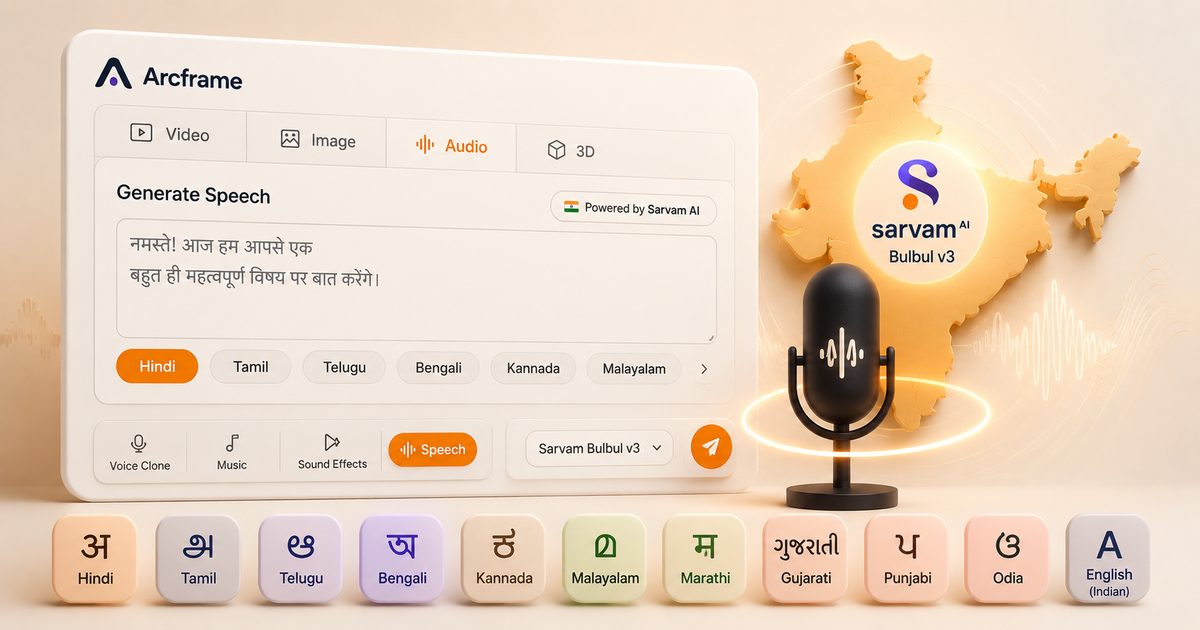
Arcframe now lets you generate natural-sounding speech in 11 Indian languages using Sarvam AI's Bulbul v3 model — directly from your browser, in under a minute. This guide walks you through exactly how to do it.
Whether you need a Hindi voiceover for a YouTube video, a Tamil narration for an e-learning course, a Gujarati script for a product demo or a Marathi announcement for a local brand — the steps are the same.
What You Need
- An Arcframe account (free — no credit card required to start)
- Your script in the target language (or in English, Arcframe handles the rest)
- 2 credits per generation (you get 20 free credits on sign-up)
Step-by-Step: Generating Indian Language Speech
Step 1 — Open the Dashboard and Select Audio
Log in to your Arcframe account and go to the Dashboard. At the top of the prompt card, you will see four output type tabs: Video, Image, Audio, 3D. Click Audio.
Step 2 — Choose the Speech Mode
Once you are on the Audio tab, you will see four mode pills along the bottom: Voice Clone, Music, Sound Effects and Speech. Click Speech.
Step 3 — Select Sarvam Bulbul v3 as the Model
At the bottom-right of the prompt card, click the model selector button (it shows the current model name). A list of speech models will appear. Select Sarvam Bulbul v3.
You will notice the dashboard hero headline changes to "Speak in 11 Indian languages today" — confirming Sarvam is active.
Step 4 — Pick Your Language
A language picker will appear inside the prompt card, labelled 🇮🇳 Powered by Sarvam AI. You will see 11 language options as clickable pills:
- Hindi — ideal for pan-India reach, YouTube, e-learning, ads
- Tamil — Tamil Nadu audience, regional marketing, film promos
- Telugu — Andhra Pradesh and Telangana content, Tollywood promos
- Bengali — West Bengal and Bangladesh audience, cultural content
- Kannada — Karnataka audience, tech brand content (Bengaluru market)
- Malayalam — Kerala audience, highly engaged regional content market
- Marathi — Maharashtra audience, local business and political content
- Gujarati — Business community content, trade and finance narration
- Punjabi — Punjab audience, music, lifestyle and food content
- Odia — Odisha audience, government and cultural content
- English (Indian) — Indian-accented English for domestic audiences
Click the language you want. The selected pill highlights in orange.
Step 5 — Type or Paste Your Script
Click inside the prompt text area and type or paste your script. A few tips for best results:
- Keep scripts under 2,500 characters per generation for best quality
- Write in the target language for most natural output — Sarvam is trained on native text
- Use punctuation correctly — commas and full stops shape the natural rhythm and pacing of the voice
- For longer content, break it into logical paragraphs and generate each section separately
- Avoid mixing too many languages in one script — Sarvam handles code-switching but consistency produces better results
Step 6 — Generate
Click the send / generate button (the arrow button at the bottom-right of the prompt card). The job will appear in your dashboard grid with a Rendering… status.
Because Sarvam's API is synchronous, generation is fast — typically 5–10 seconds for a standard clip, significantly quicker than video generation.
Step 7 — Preview and Download
Once the status switches to Completed, click the job card to open the preview. You will hear the audio play directly in the browser. Click Download to save the WAV file to your device, ready to drop into your video editor, podcast software or wherever you need it.
Use Cases: What Can You Create?
YouTube and Reels Voiceovers
Generate Hindi or Tamil narration for your educational, entertainment or lifestyle videos. Pair the audio with your video footage in any video editor to produce fully localised content without hiring a voice artist.
E-Learning and Training Content
Produce course narrations in multiple Indian languages from a single script. Translate your English script into the target language, generate with Sarvam, and offer your course in regional languages — dramatically expanding your reach.
Product Advertisements
Create localised audio for product ads targeting specific state markets. A Gujarati voiceover for a business-to-business product ad will outperform a generic English one every time.
IVR and Customer Support
Generate IVR (Interactive Voice Response) prompts and customer support audio in regional languages. Clear, natural-sounding Hindi or Marathi IVR improves the caller experience significantly over robotic TTS.
Podcast Intros and Outros
Create professional-sounding intro and outro narrations for regional-language podcasts. A polished Bengali or Malayalam podcast intro sets the tone and builds audience trust.
Frequently Asked Questions
Can I generate speech in English using Sarvam?
Yes — select English (Indian) as the language. This produces English speech with a natural Indian accent, which often resonates better with domestic Indian audiences than a generic American or British accent.
What is the maximum script length?
Sarvam Bulbul v3 supports up to 2,500 characters per generation. For longer content, split your script and generate in segments.
How many credits does it cost?
Sarvam Bulbul v3 costs 2 credits per clip — the most affordable speech model on Arcframe. New accounts get 20 free credits, which gives you 10 test generations to explore the quality.
Can I use other speech models alongside Sarvam?
Yes. Arcframe also offers ElevenLabs Eleven v3 (expressive English TTS with emotion tags), MiniMax Speech 2.8 HD (high-fidelity multilingual), and Gemini Flash TTS (fast and low-latency). Sarvam is specifically the best choice for Indian-language output.
Start Generating Indian Language Speech Today
Sign up at arcframe.ai — it is free, no credit card required. Your first 20 credits are waiting. Go to Audio → Speech → Sarvam Bulbul v3, pick your language, and generate your first Indian-language voiceover in under a minute.