
Turn a PowerPoint, PDF or a Single Image Into a Narrated Video
Upload a deck, a document, or one image — Arcframe writes the narration from what is on the page, speaks it in the voice and language you choose, and returns a finished video in minutes. Here is the full walkthrough, including what it costs.
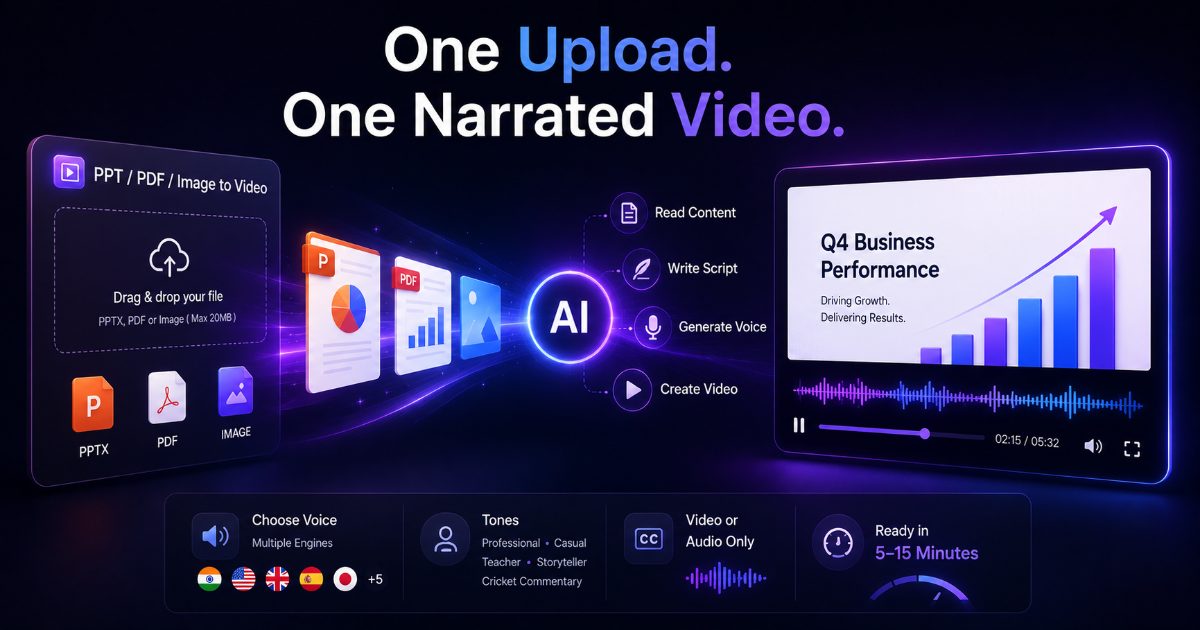
One upload, one narrated video
Most explainer videos die in the gap between having the material and having the time. The slides already exist. The report is already written. The infographic is already designed. What is missing is a voice, a render, and the two hours it takes to record and edit them.
Arcframe's PPT/PDF/Image to Video tab closes that gap. Upload a PowerPoint, a PDF, or a single image, and Arcframe reads what is actually on the page, writes a narration script for it, speaks it in the voice and language you choose, and returns a finished video — usually in five to fifteen minutes.
What you can upload
- Images —
.png,.jpg,.webp - Presentations —
.pptx - Documents —
.pdf
Maximum 20 MB, and up to 30 slides or pages per file.
How to use it, step by step
- Sign in and open the dashboard. Select the PPT/PDF/Image to Video tab.
- Drop your file on the upload area, or click to browse. Arcframe reads it immediately and tells you how many slides or pages it found, and what the job will cost.
- Choose your deliverable: a full video, or audio only.
- Pick a narration tone — Professional, Casual, Teacher, Storyteller, or Cricket commentary.
- Pick a voice engine and language.
- Optionally add creative direction — a free-text note such as "keep it under two minutes", "focus on the technical detail", or "use simple language for beginners".
- Click generate. You can close the tab; Arcframe emails you when the video is ready, and it appears in your creations.
Video, or audio only
Two deliverables, chosen with one click:
- Video — visuals plus narration. The narration track is also attached as a separate download, so you can drop the audio into your own edit if you would rather use your own visuals.
- Audio only — just the narration track. It is cheaper, and it is the right choice when you want a voiceover for a video you are cutting elsewhere, or a spoken version of a document.
Choosing a voice
Three narration engines, each with its own strengths:
| Engine | Best for | Languages |
|---|---|---|
| Sarvam Bulbul | Indian-language narration | 11 — Hindi, Tamil, Telugu, Bengali, Kannada, Malayalam, Marathi, Gujarati, Punjabi, Odia, English (IN) |
| ElevenLabs v3 | Expressive delivery, choice of 20 named voices or your own voice ID | 9 — English, Hindi, Spanish, French, German, Portuguese, Japanese, Chinese, Arabic |
| Your own voice | Narrating in your voice, or your presenter's | Same 9 as above |
The third option needs a one-time setup: record or upload a short sample, save it, and prepare it once. After that every video narrates in your voice instantly. We wrote a separate guide covering exactly that.
A single image stays on screen
Uploading one image behaves differently from uploading a deck, deliberately. Your image is shown full-frame for the length of the narration, with its aspect ratio preserved — a portrait graphic stays portrait rather than being stretched to fit a widescreen frame. Nothing is cropped, and nothing is replaced.
That is the whole point when the image is the content: an analysis sheet, a stat card, a diagram, a one-page report. You want it read aloud, not reinterpreted.
Quality tiers, for decks
PowerPoint and PDF uploads offer three levels of visual treatment:
| Tier | What you get |
|---|---|
| Standard | Your slides, with subtle motion and narration over them. |
| Enhanced | An AI-generated opening sequence, then your slides with animated text callouts. |
| Cinematic | AI-generated footage woven throughout, mixed with your slides. |
On Enhanced and Cinematic you also choose which AI video model generates the footage — Gemini Omni Flash or Seedance 2.0 Fast.
What it costs
Pricing is per slide or page, so a one-image job is genuinely cheap:
| Job | With Sarvam | With ElevenLabs or your own voice |
|---|---|---|
| 1 image, audio only | 2 credits | 6 credits |
| 1 image, video | 3 credits | 7 credits |
| 3-page PDF, video (Standard) | 9 credits | 21 credits |
Standard is 3 credits per slide, audio only is 2, and ElevenLabs or a cloned voice adds 4 per slide. Enhanced costs 14 credits for the AI opening plus 5 per remaining slide; Cinematic is 14 per AI-generated slide and 5 for the rest. The exact figure is always shown on screen before you generate — you are never billed for a number you did not see first.
Getting better results
- Let the page carry the facts. The narrator describes what is actually there. A slide with real figures produces a specific script; a slide with one stock photo produces a vague one.
- Use creative direction for length. "Keep it under 90 seconds" is respected, and it is the fastest way to tighten a long deck.
- Match tone to audience. Teacher explains, Storyteller builds a narrative, Professional briefs. They produce genuinely different scripts, not the same script read differently.
- Try audio only first when you are unsure about the script. It costs less, and the narration track it produces is the same one the video would have used.
Try it
Every account starts with free credits and no card required — enough to turn an image into a narrated video and hear the result before deciding anything. Open the dashboard, pick the PPT/PDF/Image to Video tab, and upload something you already have.