
Turn Your PowerPoint Into a Narrated AI Video — Arcframe PPT to Video Guid
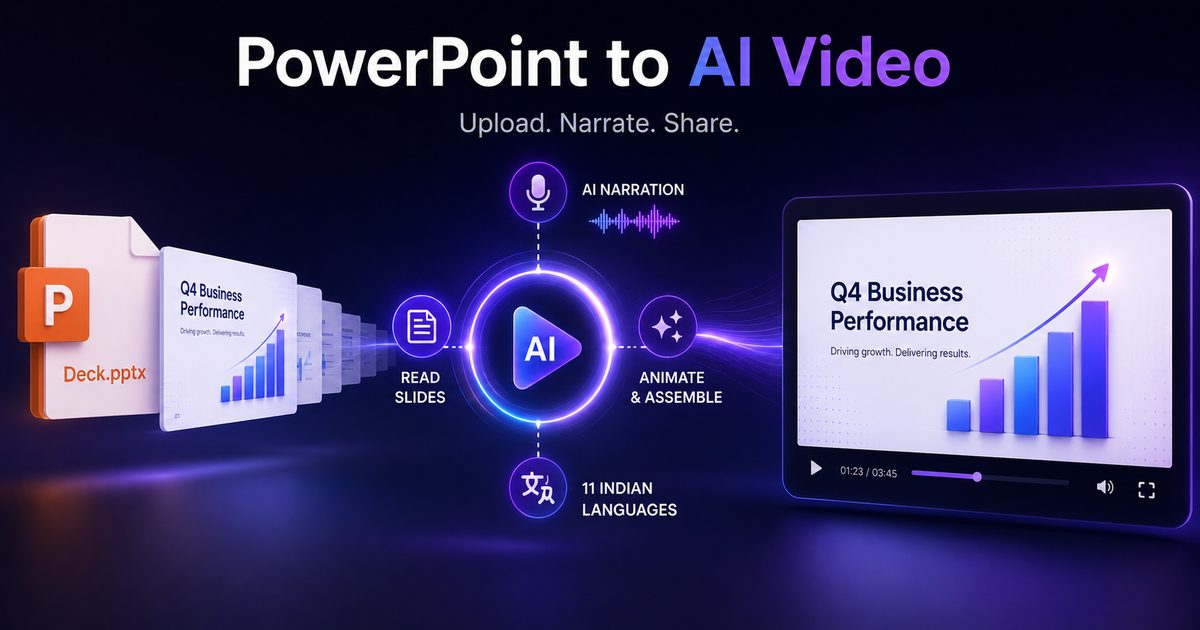
Arcframe's PPT to Video feature converts any PPTX file into a fully narrated, AI-animated video in minutes — no recording, no editing, no voiceover required. Here's how it works and how to get the best results.
Why we built PPT to Video
Most presentation tools stop at slides. You export a PDF, share a link, and hope the audience reads it. They usually don't. A narrated video of the same content gets watched, shared, and remembered — but recording one traditionally means setting up a mic, going through every slide, editing the audio, syncing the timing, and exporting a finished file. For a 15-slide deck that's an hour of work, minimum.
Arcframe's PPT to Video feature removes all of that. Upload a PPTX file, pick a quality tier and language, and the platform handles everything: it reads your slides, writes narration for each one, generates a voice, and assembles the final video. You get a shareable MP4 without touching a microphone or a video editor.
What gets generated
For each slide in your deck, Arcframe:
- Renders the actual slide as a high-fidelity image (using LibreOffice — fonts, layouts, and charts are preserved)
- Reads the slide title, body text, speaker notes, and any embedded images
- Writes a natural-language narration with GPT-4o mini
- Generates a voiceover in your chosen language and tone using Sarvam AI
- Animates the slide into a video clip with motion
- Stitches all clips into a single MP4
The result is a complete narrated video you can post directly to YouTube, LinkedIn, or your website.
The three quality tiers
PPT to Video ships with three tiers, each suited to a different use case and budget.
Standard — fastest, lowest cost
Standard renders each slide as a static video frame and narrates it. There is no camera movement or animation — just a clean, voiced version of your deck. Use this when you need a quick explainer or want to preview how your narration sounds before spending more credits on a polished version.
Cost: 3 credits per slide. A 10-slide deck costs 30 credits.
Enhanced — animated slides with B-Roll cutaways
Enhanced adds Ken Burns motion to every slide (a slow, smooth zoom that gives the video a professional documentary feel). For slides that contain embedded images — product screenshots, charts, photos — Arcframe automatically generates a B-Roll cutaway: it detects the most relevant image on the slide, cuts to it at exactly the right moment in the narration, and transitions back. The result feels like a professionally edited walkthrough.
Enhanced also supports gender selection: choose a female voice (Ritu) or male voice (Shubh) and the voiceover adjusts accordingly.
Cost: 14 credits for slide 1 (AI video intro) + 5 credits for each remaining slide. A 10-slide deck costs approximately 59 credits.
Cinematic — AI-generated video per slide (Beta)
Cinematic is the highest quality tier. Every third slide is sent to Seedance 2.0 — the same AI video model used for standard video generation — and rendered as a fully AI-generated 8-second cinematic clip. The remaining slides use the Ken Burns + B-Roll pipeline from Enhanced. The output is a hybrid video where key slides have genuine AI motion and the rest flow smoothly between them.
Because Cinematic jobs run multiple parallel AI video generations, they take longer — typically 5 to 15 minutes for a full deck. You will receive an email when your video is ready. If the job fails partway through (for example, due to a temporary model hiccup), you can resume it from the job card without losing progress or paying for slides that already completed.
Cost: 14 credits per Cinematic slide + 5 credits per Ken Burns slide. Costs are shown on the preflight screen before you confirm.
Supported languages and tones
PPT to Video narration is powered by Sarvam AI and supports 11 languages out of the box:
- English (Indian accent)
- Hindi
- Tamil
- Telugu
- Bengali
- Gujarati
- Kannada
- Malayalam
- Marathi
- Odia
- Punjabi
You can also choose a narration tone that shapes how the script is written:
- Professional — formal, clear, suited to business presentations and investor decks
- Casual — conversational, relaxed, good for tutorials and social media
- Teacher — explanatory, patient, ideal for educational content and training decks
- Storyteller — narrative-led, engaging, best for pitch decks and product stories
Step-by-step: how to use PPT to Video
- Open the dashboard and click the PPT to Video tab in the output type selector at the top of the generation panel.
- Upload your PPTX file. Drag it into the dropzone or click to browse. Arcframe immediately runs a preflight check — within a few seconds you will see your slide count, deck title, and the credit cost for each tier.
- Review the preflight summary. If your credit balance is insufficient for the selected tier, a warning appears here. You can top up from the Credits page without leaving the flow.
- Choose your quality tier — Standard, Enhanced, or Cinematic.
- Select your language and tone. Pick the language your audience speaks and the narration style that fits the content.
- Add creative direction (optional). The instructions field lets you tell the AI narrator anything specific: "keep narration under 20 seconds per slide", "emphasise the ROI figures", "use simple language". This is injected directly into the narration prompt.
- Click Generate. Credits are charged at this point. For Standard and Enhanced, your video is usually ready within 2–5 minutes. For Cinematic, expect 5–15 minutes — you will get an email when it finishes.
- Download or share. The completed video appears in your job grid. Click to play, then download the MP4 for publishing.
Tips for better results
Add speaker notes to your slides. Arcframe reads your notes alongside the slide text. A slide with only a title and three bullet points will get a generic narration; the same slide with speaker notes ("in this section we cover the 3 reasons customers churn in month one") produces a much more specific and useful voiceover.
Use the creative direction field. If you have a preferred pacing, emphasis, or style, describe it. "Keep each slide under 15 seconds" or "open each slide with a question" are both valid instructions that the AI will follow.
Start with Standard before committing to Cinematic. Standard is fast and cheap. Use it to proof the narration quality and flow, then re-run on Enhanced or Cinematic once you're happy with the script.
Keep slide text concise. Walls of text on a slide mean the narration will be long, which increases per-slide video duration and can make the output feel rushed. Aim for 3–5 bullet points per slide or rely on speaker notes for depth.
Embedded images improve B-Roll quality. On Enhanced tier, slides with a clearly relevant embedded image (a chart, a product screenshot, a photo) will trigger a B-Roll cutaway. The more descriptive and relevant the image, the better the cutaway timing.
Credit usage at a glance
| Tier | Cost per slide | 10-slide deck | 20-slide deck |
|---|---|---|---|
| Standard | 3 cr | 30 cr | 60 cr |
| Enhanced | 14 cr (slide 1) + 5 cr (rest) | 59 cr | 109 cr |
| Cinematic | 14 cr (AI slides) + 5 cr (Ken Burns) | ~80–100 cr | ~160–190 cr |
The exact cost for your deck is always shown on the preflight screen before you confirm, so there are no surprises.
If a Cinematic job fails partway through, credits for completed slides are kept; credits for failed slides are refunded. You can then resume the job and only pay for the remaining slides.
What to use it for
- Investor and pitch decks — turn a 10-slide funding pitch into a narrated 3-minute video you can send via email or post on LinkedIn
- Product walkthroughs — convert a feature deck into a demo video without scheduling a screen recording session
- Training and onboarding — convert SOPs and onboarding decks into narrated videos for async team training, in any language your team uses
- Course content — produce lecture-style video from slide decks in Hindi, Tamil, Telugu, or any of the 11 supported languages
- Social content — repurpose a slide deck you already have into short-form video content for LinkedIn or YouTube
Get started
PPT to Video is available now on all paid Arcframe plans. Free accounts receive a limited number of credits to try it out. Upload your first deck at arcframe.ai/dashboard — select the PPT to Video tab, drop your file, and your video will be ready in minutes.