
How to Make the Text-Behind-Subject Video Effect With AI
AI can cut a person out of a video clip onto its own layer, so text or graphics placed underneath show behind them and in front of the background — no green screen, no manual rotoscoping, done in a couple of minutes per clip.
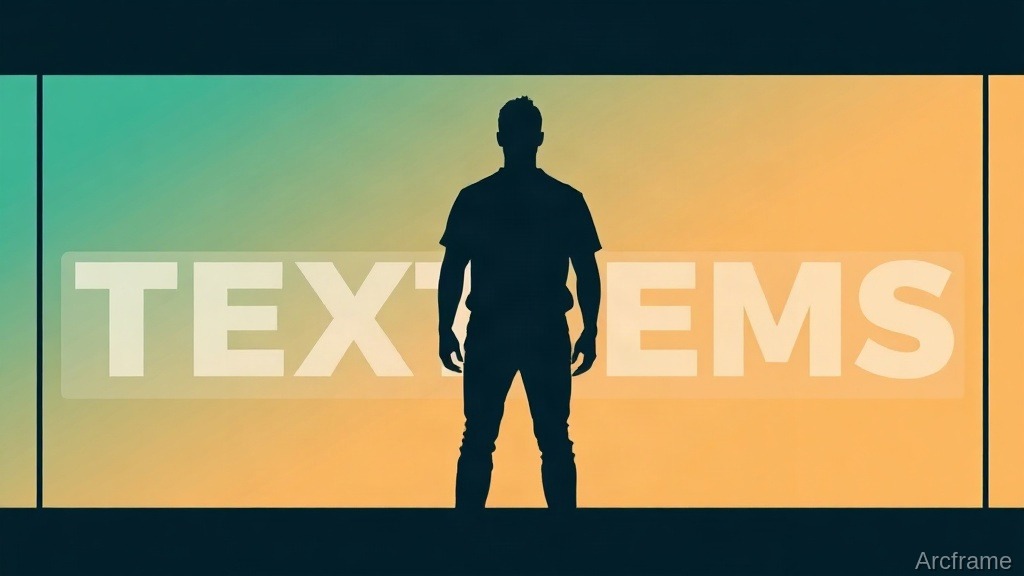
To make the text-behind-subject effect, you don't need a green screen or manual rotoscoping: an AI cutout tool isolates the person in a clip onto a new layer above the original footage, and anything you place on a track between the two — a word, a number, a shape — shows up behind them and in front of the background. On a platform with this built in, a 10-second clip takes about 20 seconds to process and roughly 5 credits.
What is the text-behind-subject effect?
It's the look, popular on Reels and TikTok, where a word or phrase sits in the middle of the frame and a person appears to be standing in front of part of it and behind the rest — as if the text were a physical object in the room. The trick isn't the text at all; it's the layering. The person has to be cleanly separated from the background first, so the text can be sandwiched between the two.
The manual way vs. the AI way
Editors have made this effect for years with masking and rotoscoping. The difference now is speed and skill required:
| Step | Manual (green screen + editor) | AI cutout |
|---|---|---|
| Separating the person | Shoot on a green screen, or hand-rotoscope frame by frame | Automatic from any ordinary clip |
| Shooting requirements | Flat, evenly lit background; a physical screen | None — works on footage you already have |
| Follows camera/subject movement | Manually re-masked or tracked | Locked to the clip automatically, including trims and speed changes |
| Typical time for a 10-second clip | 15–45 minutes | About 20 seconds of processing |
| Skill required | Comfort with masks, keyframes, chroma keying | Pick a clip and confirm |
Step-by-step: creating the effect
This is the workflow on Arcframe's timeline editor, which has a purpose-built cutout tool for exactly this effect:
- Upload or import the clip. One person clearly visible and reasonably separated from the background works best — a mid-shot or close-up of someone talking to camera is the easiest case.
- Run the cutout tool on that clip. It cuts the person out and places them on a new track directly above the original footage. The cutout is locked to the source clip, so later trims, re-ordering or speed changes carry over automatically.
- Add your text or graphic on the track between the two. Anything placed there — a caption, a number, a logo shape — will render behind the cutout person and in front of the original background, which is the whole effect.
- Preview and export. No chroma key cleanup, no edge-matting, no spill removal — the layering does the work.
What it costs
The cutout step is priced by how much of the clip actually plays on the timeline, at roughly 1 credit per 2 seconds of footage at 30fps — a 10-second clip is about 5 credits, a 30-second clip about 15. That's before any export cost. Arcframe's free tier starts with 20 one-time credits, enough to test the effect on a couple of short clips before deciding whether to top up; current credit pricing is on the pricing page, which is the only place to get an up-to-date number — costs posted elsewhere age badly.
Where this breaks down
Being specific about the limits matters more than the demo reel:
- One subject at a time. The tool is built around one clearly visible person per clip; two people overlapping or crossing in front of each other will confuse the cutout.
- Messy backgrounds hurt. It's not chroma-key perfect — busy backgrounds, motion blur, or a subject partially blocked by foreground objects will produce rougher edges than a clean studio shot.
- It costs per second, not per clip. A 2-minute talking-head video processed whole would run well over 50 credits for the cutout alone — this effect is built for short, punchy clips, not full-length edits.
- Processing isn't instant. Budget roughly twice the clip's length in processing time, so a 10-second clip takes about 20 seconds — fine for a single effect shot, not for batch-processing a long timeline.
Where it fits beyond the trend
The same cutout-plus-middle-layer technique works for more than one viral format: product callouts that appear to sit behind a presenter, a stat or price that "stands" in the room with them, or a logo reveal where the subject walks in front of half of it. Once the person is on their own track, anything on the layer beneath follows the same rule — it shows through wherever the subject isn't.
FAQ
Do I need a green screen? No — that's the point of an AI cutout; it works on ordinary footage shot anywhere.
Can I use a phone video? Yes, as long as the subject is clearly visible and not heavily obstructed.
Does it work with text that changes mid-clip? Yes — since the cutout and the text are on separate tracks, you can swap, animate or re-time the text layer independently of the person layer.