
What is MCP? How to Generate AI Videos and Images Directly from Claude, ChatGPT, and Cursor
MCP (Model Context Protocol) lets AI agents like Claude and ChatGPT generate videos, images, audio, and 3D models on your behalf — without opening a browser. Here's how to connect Arcframe in under two minutes.
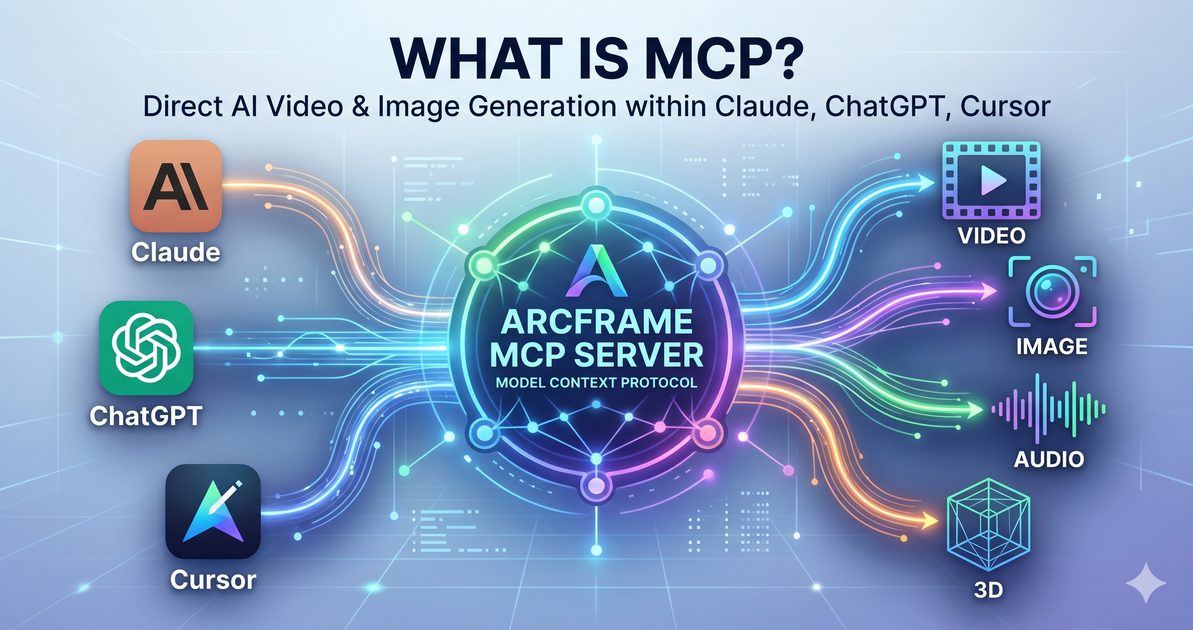
What is MCP?
The Model Context Protocol (MCP) is an open standard that lets AI assistants — like Claude, ChatGPT, Cursor, and Perplexity — connect to external tools and services on your behalf. Instead of switching between browser tabs, you describe what you want inside your favourite AI chat and the agent handles the creation for you.
Think of MCP as a universal plug. Once an app publishes an MCP server, any compatible AI client can call it. Arcframe is one of the first AI generation platforms to support it.
Why Does This Matter for Creators?
Without MCP, your workflow looks like this: open Arcframe, write a prompt, wait, download, go back to your design tool. With MCP, your workflow looks like this: describe what you need in Claude, press enter, get the result inline — all while you keep working on everything else.
You do not need to leave your AI assistant. Your credits, your plan, and your generation history all stay on your Arcframe account.
How to Connect Arcframe to Claude (or any MCP client)
- Go to the connector page. Open arcframe.ai/mcp and copy the MCP server URL:
https://mcp.arcframe.ai/mcp - Add the server in your AI client. In Claude Desktop, go to Settings → Developer → Add MCP Server. Paste the URL and click Connect. In Claude.ai web, use the MCP server panel. In Cursor, add it under Settings → MCP.
- Authorise your account. A browser window will open asking you to log in to Arcframe and grant access. Click Allow. This is a one-time step — your credentials are never stored by the AI client.
- You are connected. The agent now has access to 8 Arcframe tools: generate video, generate image, generate audio, generate 3D, check your balance, list available models, and view your past creations.
What Can You Generate via MCP?
- Videos — from scripts, news headlines, product descriptions, or marketing briefs. Choose from 8 models including Seedance 2.0, Veo 3.1, and Sora.
- Images — photorealistic, illustrated, or product renders. Generate, edit, upscale, or remove backgrounds.
- Audio — background music, sound effects, voiceovers, or clone your own voice to narrate content at scale.
- 3D models — from text descriptions or reference photos, ready to use in Unity, Blender, or any 3D tool.
A Real Example
Here is what a typical MCP session looks like in Claude:
"Generate a 10-second cinematic video of a product launch event in a dark studio with dramatic lighting. Use Seedance 2.0."
Claude calls the generate_video tool, submits the job to Arcframe, and polls for the result. Once complete, it returns a direct playable link. No browser tab. No manual copy-paste. Your credits are deducted automatically from your Arcframe balance.
Is It Secure?
Yes. Arcframe uses OAuth 2.1 — the same protocol used by Google and GitHub sign-in. The AI client never sees your password or payment details. You can revoke access at any time under Settings → Apps on arcframe.ai.
Getting Started
You need an Arcframe account (free to sign up — 20 starter credits included) and any MCP-compatible AI client. Visit arcframe.ai/mcp for the full setup guide and a list of supported clients.